Telegram Channels
Complete guide to managing Telegram channels, assigning subscription plans, monitoring channel health, and analyzing member activity.
On this page
Channels Overview
Telegram Channels are where your premium content is delivered to subscribers. GramMonetize provides comprehensive tools to manage, monitor, and optimize your channel operations.
Easy Setup
Add channels via dashboard or automatically through bot commands.
Smart Monitoring
Automated monitoring detects banned/deleted channels and switches defaults.
Complete Analytics
Track member activity, channel health, and subscription performance.
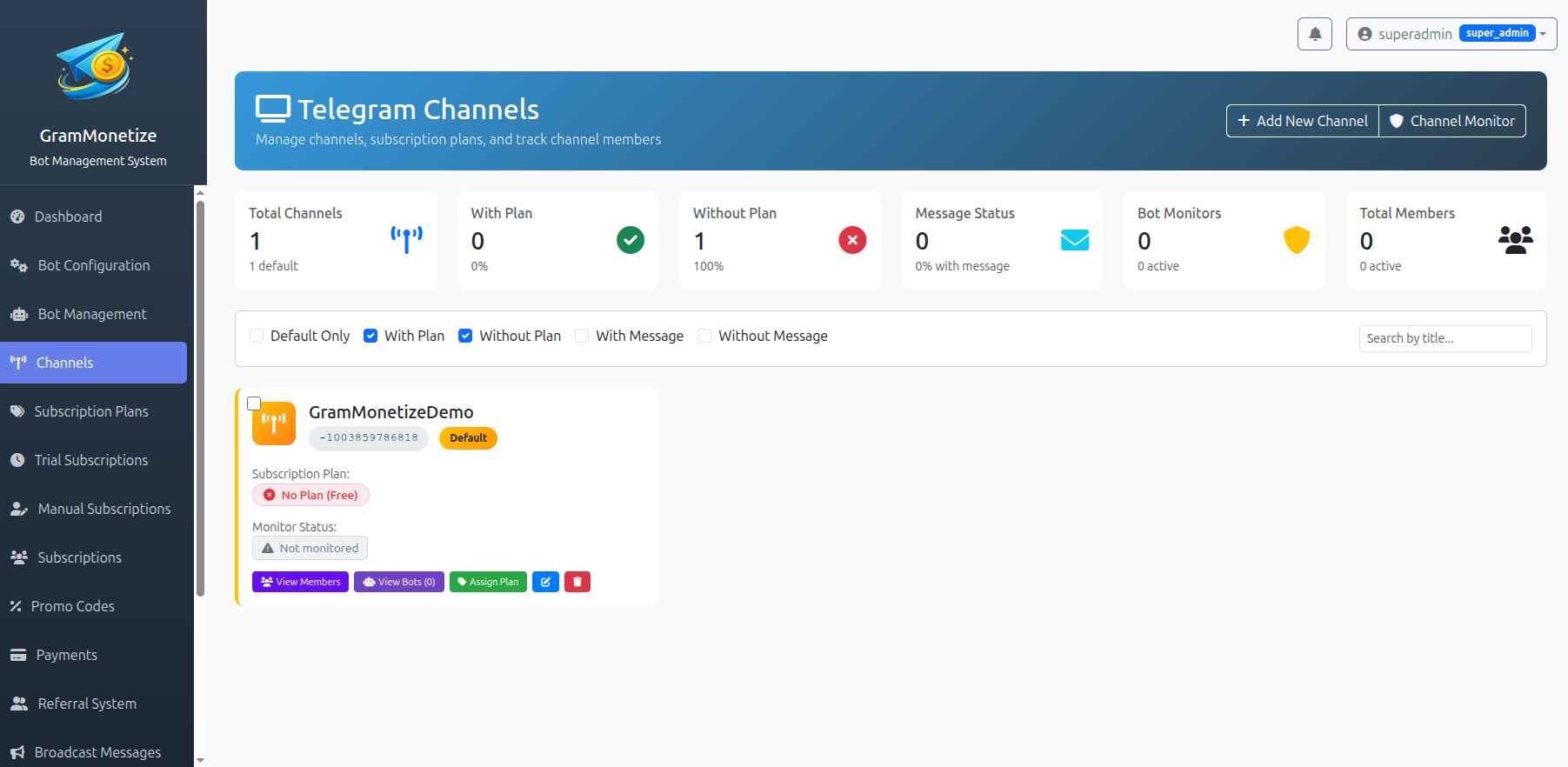
Adding Channels
Add Telegram channels to your GramMonetize system using two convenient methods.
Method 1: Through Dashboard
1. Get Channel Chat ID
Find your channel's Chat ID:
Public Channels:
- Format:
@channelname - Example:
@my_premium_channel - Just use the channel username
Private Channels:
- Format:
-1001234567890 - Negative number with 13+ digits
- Use ID bot or forward message
2. Add Channel in Dashboard
Navigate to Channels → Add New Channel and fill the form:
Required Fields:
Optional Fields:
3. Add Bot as Admin
For the channel to work properly, you must:
- Add your GramMonetize bot to the channel
- Grant the bot Admin privileges
- Enable all necessary permissions (Post Messages, Ban Users, etc.)
Method 2: Via Telegram Bot
Automatically add channels by sending a command in the channel.
1. Add Bot to Channel
Add one of your GramMonetize bots to the channel as administrator.
Post messages, Add members, Ban users, etc.
2. Send Settings Command
In the channel, send the command: /settings
3. Automatic Configuration
The bot automatically:
- Detects channel name and ID
- Adds channel to your dashboard
- Verifies bot admin permissions
- Sends confirmation to your Telegram
📋 Manual Method
Best for: Initial setup, precise control
- Full control over all fields
- Add multiple channels at once
- Set custom descriptions/categories
- Requires Chat ID knowledge
⚡ Auto Method
Best for: Quick additions, multiple channels
- No Chat ID needed
- Instant detection
- Perfect for team members
- Requires bot admin access
Plan Assignment
Assign specific subscription plans to channels to control access and create tiered content systems.
Channel-Plan Relationships
One Channel, Multiple Plans
A single channel can be accessible to subscribers of different plans:
Accessible to:
One Plan, Multiple Channels
A subscription plan can grant access to multiple channels:
Includes access to:
How to Assign Plans:
1. Edit Channel Settings
Click "Edit" on any channel in your channels list.
2. Select Plans
In the edit modal, choose which plans can access this channel:
3. Save Changes
Click "Save" and the bot will automatically update channel permissions.
Editing and Deleting Channels
Editing Channels
You can edit any channel details at any time:
- Change channel name/description
- Update plan assignments
- Modify category/tags
- Change default channel status
Deleting Channels
When deleting a channel:
- All subscribers are removed from channel
- Channel data is archived for 30 days
- Associated plan assignments are removed
- Monitoring stops immediately
Quick Actions Menu:
Channel Monitoring
Automated monitoring system to detect and handle channel issues proactively.
Automated Health Monitoring
How Monitoring Works:
- Monitoring Bot: A dedicated bot is added to all channels
- Regular Checks: System checks channel status every 15 minutes
- Issue Detection: Detects bans, deletions, or access issues
- Automatic Action: Switches to backup channel if needed
- Admin Alerts: Notifies you immediately of any issues
Setup Monitoring:
1. Assign Monitoring Bot
Choose a bot from your bot management to monitor channels.
2. Add to All Channels
The system automatically adds the bot to all monitored channels.
3. Configure Alerts
Set up notification preferences for different alert types.
Detected Issues and Actions:
| Issue | Detection Method | Automatic Action | Admin Alert |
|---|---|---|---|
| Channel Banned | API returns "chat not found" | Set backup as default, remove from active | Immediate (Email + Telegram) |
| Channel Deleted | Bot removed from channel | Mark as inactive, notify subscribers | Immediate (Email + Telegram) |
| Bot Removed | Bot loses admin privileges | Send restoration instructions | Within 1 hour |
| Access Issues | Failed to add/remove users | Retry 3 times, then alert | Within 4 hours |
Default Channel Switching:
When the default channel has issues, the system automatically promotes another channel:
Detected: Channel banned by Telegram
Promoted: All subscribers migrated automatically
Monitoring Requirements:
- Monitoring bot must be admin in all channels
- At least one backup channel recommended
- Regularly test monitoring system
- Keep contact information updated for alerts
Member Management
View and manage channel members, track activity, and analyze engagement.
View Members Details
Member Information Available:
- Username: Telegram username (if public)
- User ID: Unique Telegram identifier
- Join Date: When they joined the channel
- Subscription: Active plan and expiry
- Status: Active, expired, or removed
- Last Active: Recent interaction date
Member Actions:
Sample Members Table:
| User | Join Date | Subscription | Expires | Status | Actions |
|---|---|---|---|---|---|
| @john_doe | 2024-01-10 | Pro Plan | 2024-02-10 | Active | |
| @jane_smith | 2024-01-05 | Basic Plan | 2024-01-20 | Expiring |
View Bots in Channel
See all GramMonetize bots currently added to the channel and their permissions:
@MainSubscriptionBot
Primary subscription bot@MonitorBot
Channel monitoring botBot Permission Issues
If a bot shows limited permissions, click "Fix Permissions" to receive step-by-step instructions for granting full admin rights in Telegram.
Channel Status Dashboard
Real-time overview of all your channels with key metrics and status indicators.
Channel Analytics Dashboard
Total Members Count
Members Distribution
Channel Health Status
| Channel | Status | Members | Plan | Monitoring | Last Check |
|---|---|---|---|---|---|
| Premium Main | Healthy | 856 | Pro Plan | 2 min ago | |
| VIP Lounge | Healthy | 289 | VIP Plan | 5 min ago | |
| Archive | No Plan | 0 | None | 1 hour ago |
Best Practices
Channel Setup Checklist
Avoid Common Mistakes
- Not adding bot as admin (causes access issues)
- Forgetting to assign plans to channels
- Not setting up channel monitoring
- Using same channel for multiple unrelated plans
- Not having backup channels
- Ignoring monitoring alerts
- Not regularly checking member activity
Pro Tips
📊 Organization
- Use categories to group similar channels
- Create naming conventions for easy identification
- Set clear channel descriptions for users
- Regularly audit channel assignments
🛡️ Security
- Always use private channels for paid content
- Regularly check bot admin permissions
- Monitor for unauthorized access attempts
- Keep backup channels ready
⚡ Performance
- Limit channels per plan for better management
- Monitor member growth rates
- Set up automated member cleanup
- Regularly test channel switching
Troubleshooting
Common Channel Issues
| Issue | Possible Cause | Solution |
|---|---|---|
| Bot cannot add members | Insufficient admin permissions |
|
| Channel not detected | Invalid Chat ID or privacy settings |
|
| Monitoring not working | Monitoring bot not added or no admin |
|
| Members not syncing | API rate limits or connection issues |
|
Quick Fix Commands:
// Force channel sync
/channels_sync [channel_id]

// Check bot permissions
/channels_check_bot [channel_id]

// Test monitoring
/channels_test_monitor [channel_id]

// Get channel info
/channels_info [channel_id]
Frequently Asked Questions
| Feature | Public Channels | Private Channels |
|---|---|---|
| Chat ID Format | @channelname |
-1001234567890 |
| Visibility | Searchable in Telegram | Invite-only |
| Recommended for | Free content, announcements | Paid subscriptions, exclusive content |
| Security | Lower (anyone can view) | Higher (invite required) |
Recommendation: Always use private channels for subscription-based content to prevent unauthorized access.
- Tiered Access: Basic and Premium plans access same channel
- Upsell Opportunities: Higher tiers get additional channels
- Bundle Deals: Multiple plans include core channels
Best Practice:
Consider creating separate channels for different plan levels to provide exclusive value to higher-tier subscribers.
- Addition: Added to all monitored channels as admin
- Regular Checks: Performs health checks every 15 minutes
- Issue Detection: Uses Telegram API to detect problems
- Automatic Action: If default channel fails, promotes backup
- Notifications: Alerts you via email and Telegram
- Logging: Maintains detailed logs of all checks
- Immediate Detection: Monitoring system detects the ban within 15 minutes
- Status Update: Channel status changes to "Banned" in dashboard
- Automatic Switch: If it was default, system promotes backup channel
- Member Migration: All active subscribers are moved to backup channel
- Notification: You receive immediate alerts via all configured channels
- Data Preservation: Channel data is archived for 30 days
Prevention: Follow Telegram's Terms of Service, avoid spammy behavior, and maintain channel quality to reduce ban risks.
- CSV: For spreadsheet analysis (Username, Join Date, Status)
- Excel: Formatted report with charts and analytics
- JSON: For API integration or custom applications
- PDF: Printable member directory
Export Options:
Privacy Note: Exported data only includes usernames for users with public profiles. Private user data is never exposed.
- Telegram Limits: Bots can be admin in unlimited channels
- Performance: More channels require more monitoring resources
- Management: Too many channels can become difficult to manage
- API Limits: Telegram API has rate limits for bulk operations
Recommendation:
Start with 3-5 channels and add more as your subscription business grows. Use categories and clear naming to keep things organized.
- Real-time Updates: Member additions/removals update immediately
- Scheduled Sync: Full member list sync every 6 hours
- Deduplication: Users in multiple channels counted once
- Filtering: Bots and deleted accounts excluded
- Status Tracking: Only active subscribers counted
Count Includes:
- Active subscribers with valid subscriptions
- Trial users during trial period
- Manual subscription users with active access
Note: The count may temporarily differ from Telegram's count due to sync timing, but automatic corrections occur within 6 hours.
Need More Help?
Check our general troubleshooting guide or contact our support team. Include your channel username/ID for faster assistance.
Was this documentation helpful?
Your feedback helps us improve the documentation.